With rooms you can organise your devices into different rooms. By default, all devices are added to the room 'Living Room’.
Adding, editing, or deleting Rooms
- Open the
 'HomeWizard Link' app
 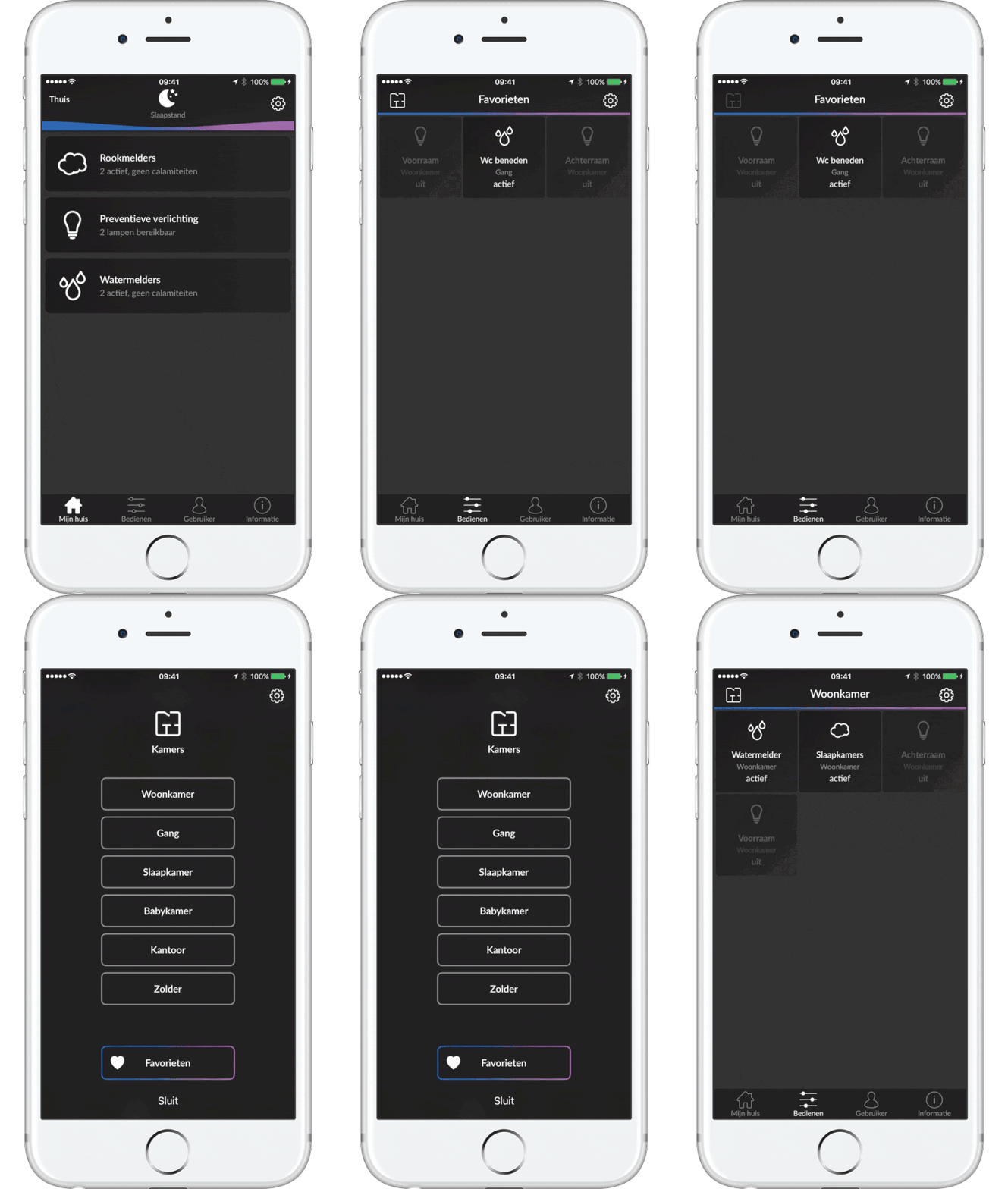 At the bottom of the screen, click
  ‘Control’
- Tap the
 'Room' icon in the top left corner.
 - Next, tap on the
 'Room settings' in the upper right corner.
 - Click on the
 'Room name' to change the name.
 - Click on the
 'Cross' to remove a room.
 - Click'Add Room' to add a room
- Click on the
Change the room for a device
- Open the 'HomeWizard Link' app.
- At the bottom of the screen, click ‘Control’.
- Hold down the 'tile' of the device for a long time.
- Tap the 'Device setting' (gear icon) at the top right of the screen.
- Tap 'Room'
- Select the room you want, or create a new room
Change the scenes for a device
- Open the 'HomeWizard Link' app.
- At the bottom of the screen, click ‘Control’.
- Hold down the 'tile' of the scene for a long time.
- Tap the 'Scene setting' (gear icon) at the top right of the screen.
- Tap 'Room'
- Select the room you want, or create a new room
Switch between rooms
- Open the 'HomeWizard Link' app.
- At the bottom of the screen, click ‘Control’.
- Tap the 'Room' icon in the top left corner.
- Tap the room you want to select (the coloured room is currently selected)
Was this article helpful?
That’s Great!
Thank you for your feedback
Sorry! We couldn't be helpful
Thank you for your feedback
Feedback sent
We appreciate your effort and will try to fix the article