Install the HomeWizard Energy app on your smartphone or tablet
Go to the App- or Playstore and search for "HomeWizard Energy", or click the buttons below to download the correct app for your device.
| HOMEWIZARD ENERGY | |
|---|---|
 |
|
| |


Install the P1 meter on your smart meter
Follow the steps below to install the P1 meter on your smart meter.
| HomeWizard Energy P1 meter installation |
|---|
The LED ring of the P1 meter will now pulsate white. This means that it is connected correctly and is receiving sufficient power from the P1 port. |
|
|
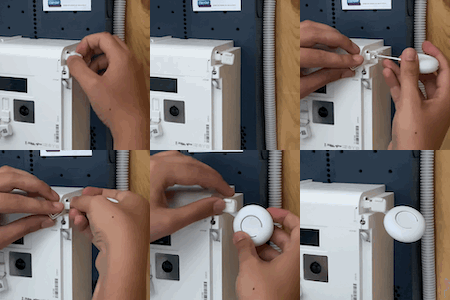
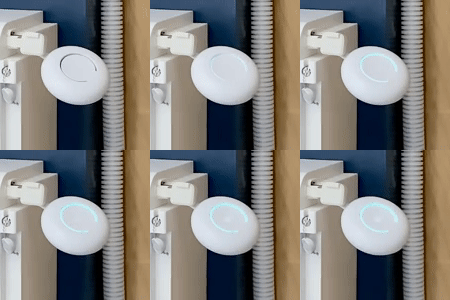 2. White pulses
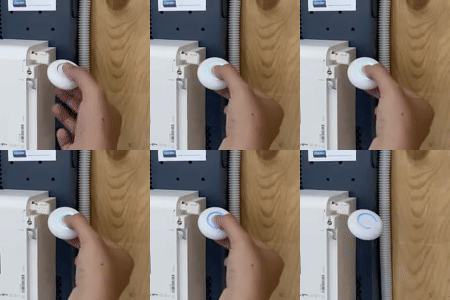 3. Activate pairing mode
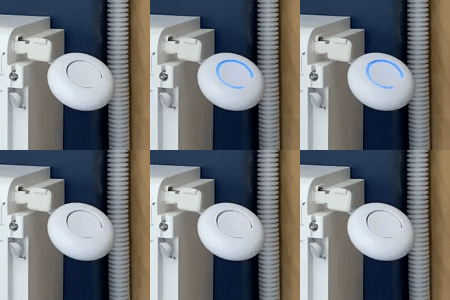 4. Pairing mode active
HomeWizard Energy app
Follow the steps below to install the P1 meter on your smartphone.
Create HomeWizard online account
- Open the
 'HomeWizard Energy' app
 - Select 'Next' to start the installation proces.
- Enter your e-mail address and press 'Next' (choose log in if you already have a HomeWizard account).
- If you do not yet have an account you can now create one by pressing 'Create account'. Follow the instructions to create your account.
Enter a name for the 'Home' you want to install your P1 meter in.
Set the location for your 'Home'. You will be asked to grant permission to use your location. This will only be used to set the correct time zone.
- Your account has been created and you will enter the app's 'Home' screen.
Add the P1 meter
- Press 'Add a device'.
- Select
 'P1 meter'.
 - Press 'Begin setup'.
- Press 'Next' to start the setup. (ensure that your P1 meter is in pairing mode)
iPhone: You will automatically be prompted to connect the the 'P1meterSetup' network.
Android: For devices running Android 10 or higher you will be automatically prompted to connect to the 'P1meterSetup' network. For older Android smartphones, follow the steps below.
1. Go to your Wi-Fi settings and connect to the 'P1meterSetup' network.
2. Enter the password SetupPass.
3. Go back to the Energy app after succesfully connecting to the network.If you have trouble connecting to the P1meterSetup network, see Cannot connect to 'meterSetup' Wi-Fi network
Select the Wi-Fi network you want to connect the P1 meter to, and enter the password for this network.
If you have trouble connecting the P1 Meter to your Wi-Fi network, see Energy meter does not connect to WiFi
- The P1 meter is now succesfully installed.
Succesfully installed
After installing the P1 meter the LED ring will turn green. |
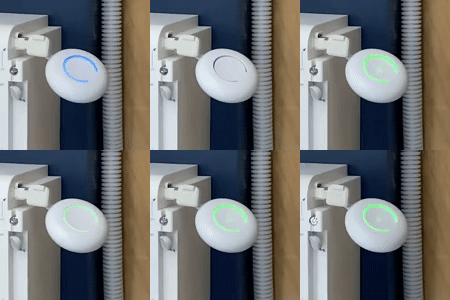 P1 Meter connected
Important notice for Belgium: In most cases the P1 port on your smart meter will be closed by default. The P1 meter will then turn red. Log in on the website of your energy supplier to open the P1 port.
Was this article helpful?
That’s Great!
Thank you for your feedback
Sorry! We couldn't be helpful
Thank you for your feedback
Feedback sent
We appreciate your effort and will try to fix the article